Object details page#
The object details page is the central view for reading and editing a single object. The URL has the form /object/{object-id}/{category-id}, the category-id segment changes as you navigate the category sidebar.
Open an object#
Click the right-arrow icon on the leftmost link of an object's row in the Finder. The page loads at /object/{id}.
Use the ← back arrow at the top left to return to the Finder.
The first time you open an object, a Quick tour dialog walks you through three slides, Details of your assets, single-value vs. multi-value categories, and a hint that categories can be customized in the settings area. Use Next to step through, or Skip tour on the last slide to dismiss it. The tour is shown once per user account.
Layout#
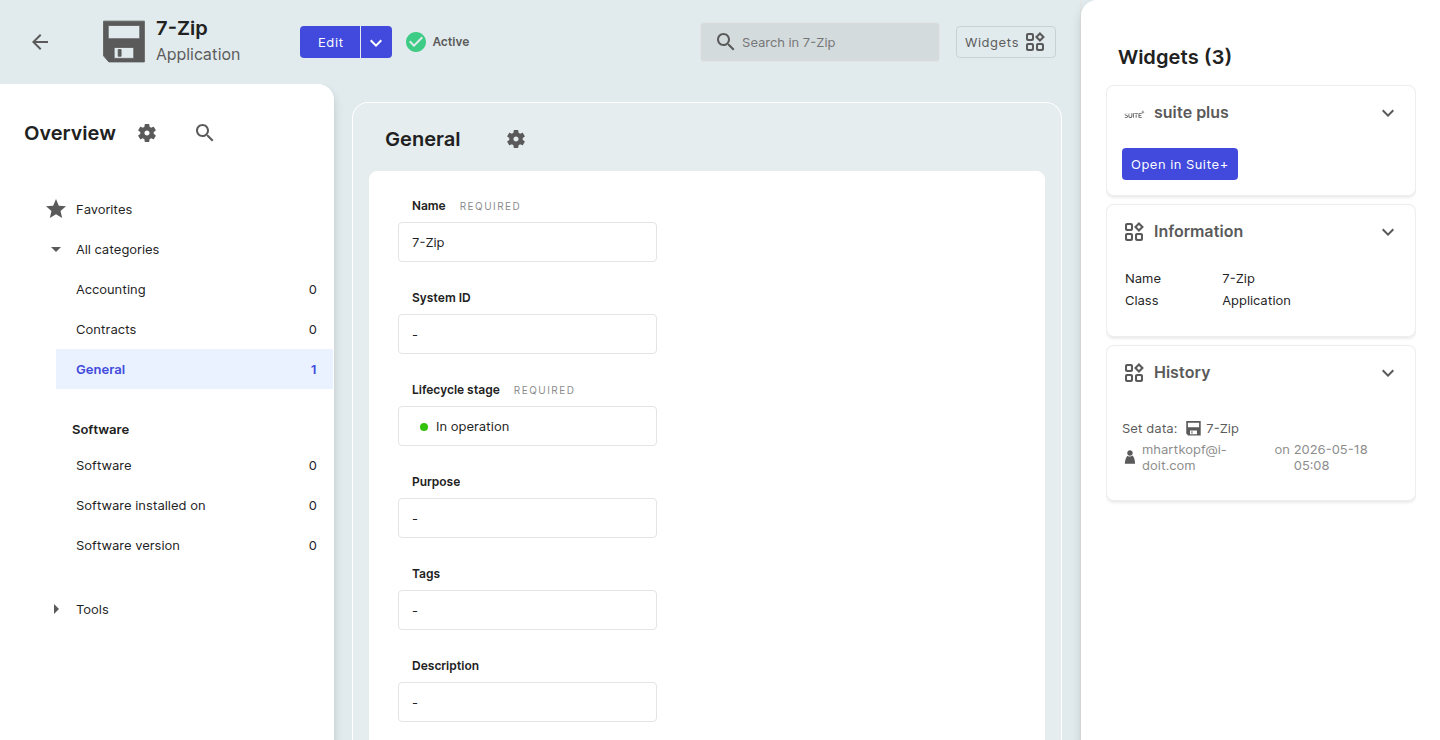
The page has three vertical regions.
Header#
The header contains:
- the
←back arrow - the object's class icon and the object name, with the class label below it
- an Edit button with a dropdown arrow (object-level actions)
- the current lifecycle status pill, for example a green dot followed by Active
- a search box labelled
Search in {object name} - a Widgets button to manage the right pane
Left sidebar, Overview#
A category tree.
- The first entry is ★ Favorites: the attributes you have marked as favorites on this object.
- Below it, All categories lists every category attached to the object with the entry count next to each name (for example
General 1,IP networking 0). - Some category groups sit below All categories: for example Storage: with their own categories.
The sidebar header has a gear icon to manage category visibility, and a magnifying glass icon to search within the sidebar.
Main pane#
The contents of the currently selected category. See Single-value categories and Multi-value categories below.
Right pane, Widgets#
Two widgets are shown by default:
- History: list of recent changes with timestamp and author.
- Information: key facts about the object such as Name, Class, and Contact.
The Widgets button in the header opens a panel to add or remove widgets.
On tenants that have the Suite+ bridge connected, an additional suite plus widget appears in the right pane. It shows an Open in Suite+ button when the current i-doit up object has a matching asset in Suite+, or the placeholder Object is not available in Suite+ when no mapping exists yet.
Single-value categories#
When you select a single-value category (for example General), the main pane shows form-style attribute fields stacked vertically. Each attribute has:
- its label above the field, with the tag REQUIRED next to the label if the attribute is mandatory
- a value field
- an Edit pencil to the right of the field
- a ★ Add to favorites star next to the pencil
If a category has more attributes than fit at first glance, an entry {n} more attributes appears at the bottom with a Show ⌄ toggle to reveal the rest.
Multi-value categories#
When you select a multi-value category (for example IP networking), the main pane shows a table of entries with the following controls above the table:
- one or more red + buttons to add a new entry, the labels depend on the category, for example Add IPv4 + and Add IPv6 + for IP networking
- a Delete action that is disabled until at least one row is selected
- Columns: opens the Edit columns dialog, the same dialog the Finder uses
- Filters: opens the filter dialog
When the table is empty, an inline prompt, for example "There are no IP networking for this object defined yet. Let's create one.": guides you to create the first entry.
The pagination control ({n} entries, 1 / 1, page-size selector) sits at the bottom of the table.
Favorites#
Mark attributes as favorites by clicking the ★ Add to favorites star next to the attribute. The ★ Favorites entry at the top of the category sidebar then shows only your favored attributes for this object.
For favoring whole classes and the Favorites collection in the Finder sidebar, see Favorites.
Lifecycle state#
Every object has a Lifecycle stage (a required attribute on the General category), for example In operation. The current state is also shown as a colored pill (for example green Active) in the page header. Change the lifecycle by opening the General category and editing the Lifecycle stage field.
Search inside the object#
The header search box Search in {object name} returns matches across the object's categories and attributes.