IP address management#
A Network object documents an IP network, its address range, default router, DHCP scopes, and the IP addresses assigned inside it. The IP addresses category on a Network object lists every address in the network and lets you assign or unassign them.
For the per-object category that records one address on a server or other device, see IP networking.
All networks overview#
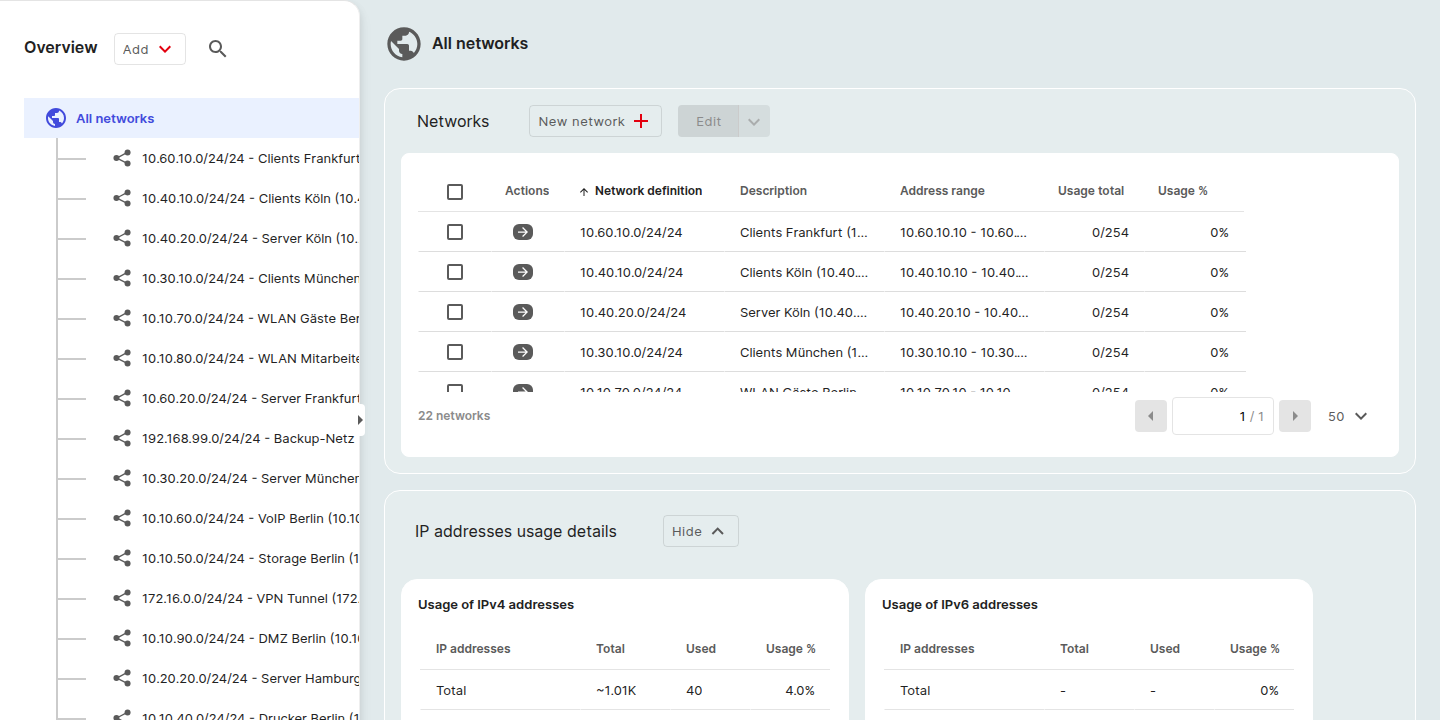
Open Inventory > Networks at the top of the page to see a tenant-wide overview of every network and its IP usage.
The page has two parts:
Networks table#
A table of every Network object with the columns:
| Column | Notes |
|---|---|
| Actions | Per-row actions including opening the network detail page. |
| Network definition | Name and address range of the network. Click the column header to sort. |
| Description | Free-text description. |
| Address range | Start to end of the network. |
| Usage total | Number of addresses currently used inside the network. |
| Usage % | Used addresses as a percentage of the total range. |
Use New network + above the table to create a network or Edit ⌄ for bulk actions on selected rows. The left sidebar mirrors the table as a hierarchical All networks tree, clicking a parent network drills down into its subnets.
IP addresses usage details#
Below the table, the collapsible IP addresses usage details section breaks the same usage numbers down by address version into two side-by-side panels:
- Usage of IPv4 addresses
- Usage of IPv6 addresses
Each panel shows three rows, Total, In DHCP scopes, Not in DHCP scopes: with Total, Used, and Usage % columns. Use the Hide ⌄ / Show ⌄ toggle to collapse or expand the section.
Network detail page#
Click a network in the All networks sidebar tree (or the row arrow in the table) to open its detail page.
The page header shows the network name, the class label, and the address range (for example Network (10.10.10.0 - 10.10.10.255)), plus a small open-in-new icon that links to the object's full categorized detail page.
Three tabs sit below the header:
- IP addresses: the same table described in Open the IP addresses table above. After a Network definition is saved, the table is pre-populated with reserved entries (the network address itself, the default router, and broadcast) plus any addresses you assign. Each row has a pencil Edit action; the Configuration column shows a colored indicator (for example a black bar for Network address) plus a status text.
- DHCP scopes: DHCP-managed ranges defined for this network.
- Networks: the network's subnets.
Networks tab (subnets)#
The Networks tab on a network detail page lists every Network object whose address range falls inside the parent. A subnet is a regular Network object, it has its own Network definition, IP addresses table, and donut chart.
The tab shows the same columns as the all-networks table:
| Column | Notes |
|---|---|
| Actions | Per-row actions including opening the subnet's detail page. |
| Network definition | Name and address range of the subnet. |
| Address range | Start to end of the subnet. |
| Usage total | Number of addresses currently used inside the subnet. |
| Usage % | Used addresses as a percentage of the subnet's range. |
A New network + button above the table creates a child network, the parent's address range is pre-filled in the new network definition so you only need to narrow it.
The same hierarchy appears in the left All networks sidebar tree on the all-networks overview: clicking a parent network expands its subnets; clicking a leaf opens its detail page.
Usage details (with donut chart)#
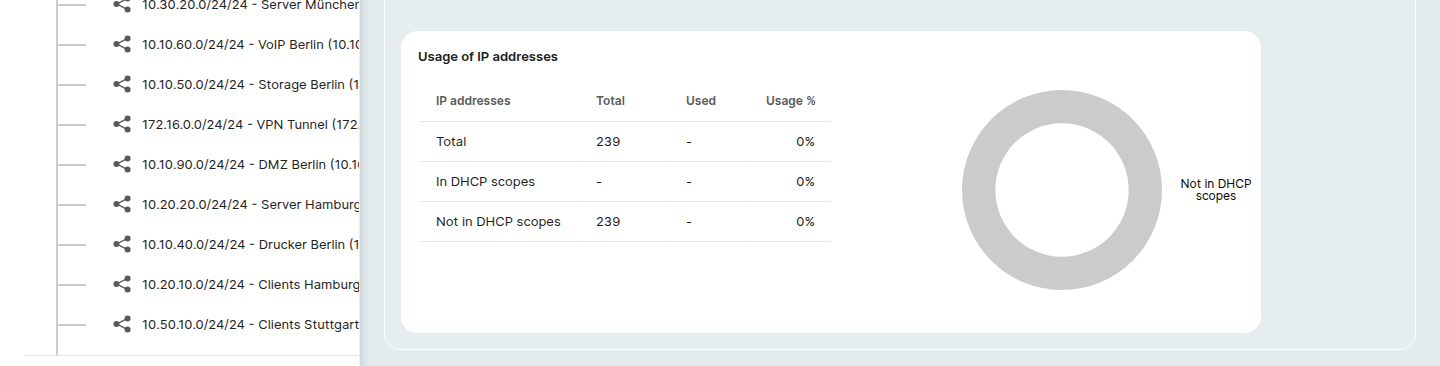
A Usage details section sits below the table on the IP addresses tab and is the one place in IPAM that shows a graphical visualization:
- A Usage of IP addresses table with the rows Total, In DHCP scopes, Not in DHCP scopes and the columns IP addresses / Total / Used / Usage %.
- A donut chart on the right that visualizes the same breakdown. The chart's legend matches the table rows; segments fill in as addresses get assigned, so an empty network shows the chart in a single neutral color while a populated network shows distinct slices for each row.
- A Hide ⌄ / Show ⌄ toggle on the section header collapses or expands the whole panel.
Rights#
You can manage IP addresses on any Network object you have write access to. See Rights and permissions.
Open the IP addresses table#
- Open a Network object, for example by selecting the Network class from the All classes dropdown above the Finder table and clicking an entry.
- In the object's category sidebar (under All categories), choose IP addresses.
Network definition is a prerequisite#
Before any IP addresses can exist on a Network object, the network itself must be described. If the Network definition category is empty, the IP addresses table shows the prompt:
Missing network definition, Please enter network definition first to be able to create IP addresses.
The Add + and Unassign buttons stay disabled until a network definition is saved. Click Add in the prompt (or open the Network definition category in the sidebar) to fill in:
- Section: the address class or zone the network belongs to.
- Version: IPv4 or IPv6.
- Network address: the base address of the network.
- Subnetmask: the CIDR of the network.
- Default router: the IP reserved as the default gateway.
After the definition is saved, the IP addresses table activates.
What the table shows#
Once Network definition is in place the table has the following columns:
| Column | Notes |
|---|---|
| (checkbox) | Selects rows for the Unassign action. |
| Actions | Per-row actions. |
| IP address | The address. Click the column header to sort. |
| Configuration | How the address is configured (for example Static). |
| Objects | The object or objects the address is assigned to. |
The table is paginated at the bottom, with a page-size selector to switch how many entries are shown.
Two filter controls live above the right edge of the table:
- All IP addresses ⌄: filter the table view (for example to show only assigned, unassigned, or grouped empty ranges).
- Expand ranges ↕: toggle whether unassigned ranges are shown as one row per range or expanded into individual addresses.
Assign an IP address#
- Hover the row of an unassigned address (or an unassigned range).
- Click Edit in the row's Actions cell.
- In the Edit IP address modal, fill in the Object the address belongs to and the Configuration (for example Static assigned).
- Click Save.
Unassign one or more addresses#
- Select the addresses to unassign using their checkboxes.
- Click Unassign above the table.
- Confirm in the dialog.
The button is disabled until at least one row is selected. Already unassigned rows in your selection are ignored.
Related categories on a Network object#
In addition to IP addresses and Network definition, a Network object exposes:
- DHCP scopes: DHCP-managed address ranges.
- Subnets: child networks contained within this network.
Further readings#
- IP networking, the per-object category that stores an individual address on a server or other device.
- Objects
- Categories and attributes