Empty states#
An empty state is the screen i-doit up shows when there is nothing to display, for example, a Finder table with no matching objects, or a 404 page. Each empty state combines a heading, a short helper paragraph, an illustrative graphic, and (where appropriate) a call-to-action button that gets you out of the dead-end.
This page catalogs the empty states that appear during normal use.
Catalog#
No objects found: Finder#
Shown on /finder when the active class plus filter combination returns zero rows.
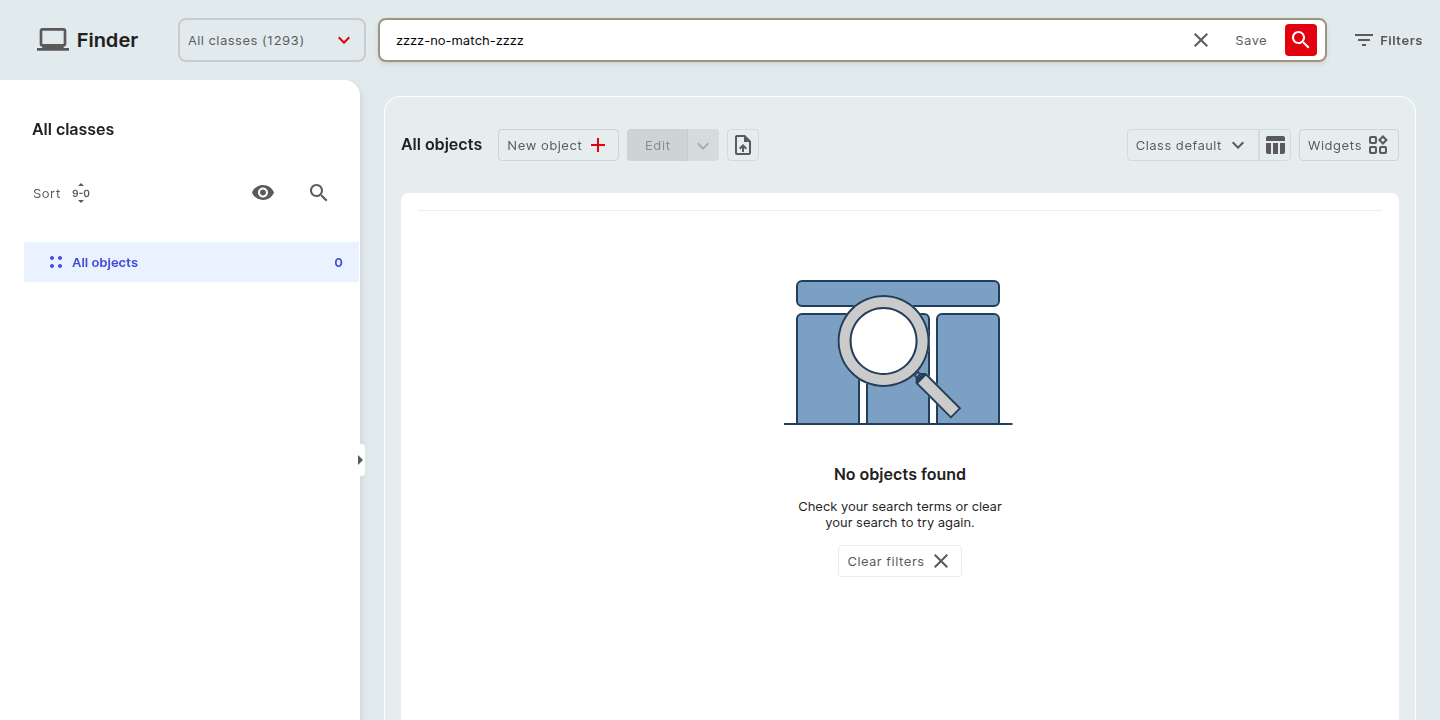
- Heading: No objects found
- Body: Check your search terms or clear your search to try again.
- Action: Clear filters removes every active filter chip; the class selection itself is left untouched.
The same empty state is reused on any class-scoped Finder table, including the class list and Locations.
Define network definition: IP addresses tab#
Shown on the IP addresses category of a Network object when the Network definition is missing. See IP address management for the full attribute list.
- Heading: Missing network definition
- Body: Please enter network definition first to be able to create IP addresses.
- Action: Add opens the Network definition form pre-focused on the Section field.
The Add + and Unassign buttons above the table stay disabled until a network definition is saved.
No saved searches: Edit dropdown#
Shown inside the Edit ⌄ dropdown above the Finder table when the active class has no saved searches yet.
- Heading: No saved searches yet
- Body: Configure a filter, then save it as a view to see it here.
- Action: None, the prompt itself directs you to the Set filter dialog.
No reports: Report Manager#
Shown on /report when the tenant has no reports. See Report Manager.
- Heading: No reports yet
- Body: Create your first report to combine attributes from multiple classes.
- Action: Add + opens the report-creation modal.
404, Page not found#
Shown when a deep-linked URL no longer resolves, for example, an object that has been deleted, or a malformed object ID.
- Heading: Page not found
- Body: The page you were looking for does not exist or you do not have access to it.
- Action: Back to Finder returns you to
/finder.
Access denied#
Shown when you reach a surface that your role or permissions do not cover, for example, a settings sub-page that requires Manage Subscription. See Rights and permissions.
- Heading: You do not have access to this page
- Body: Ask your administrator to grant you the right or permission required for this surface.
- Action: Back to Finder.
Conventions#
- The illustration sits above the heading.
- The action button uses the same primary-button style as elsewhere in the app.
- Body copy is one short sentence, never a paragraph.
- An empty state never replaces global chrome (top bar, sidebar), it only fills the content area.
Further readings#
- Finder overview
- IP address management
- Report Manager
- Notifications, for transient feedback that disappears on its own.