DHCP scopes#
The DHCP scopes category records the address ranges that a DHCP service hands out inside a network. Adding scopes makes the IP-address table visually group dynamic ranges, and feeds the In DHCP scopes / Not in DHCP scopes breakdown in the Network detail page usage panel.
Where it lives#
DHCP scopes are a category of the Network class. They show up in two places:
- As the DHCP scopes entry in the All categories sidebar of a Network object, see Object details page.
- As the DHCP scopes tab on the Network detail page opened from Inventory ▸ Networks.
Both surfaces show the same data and offer the same actions.
Scope attributes#
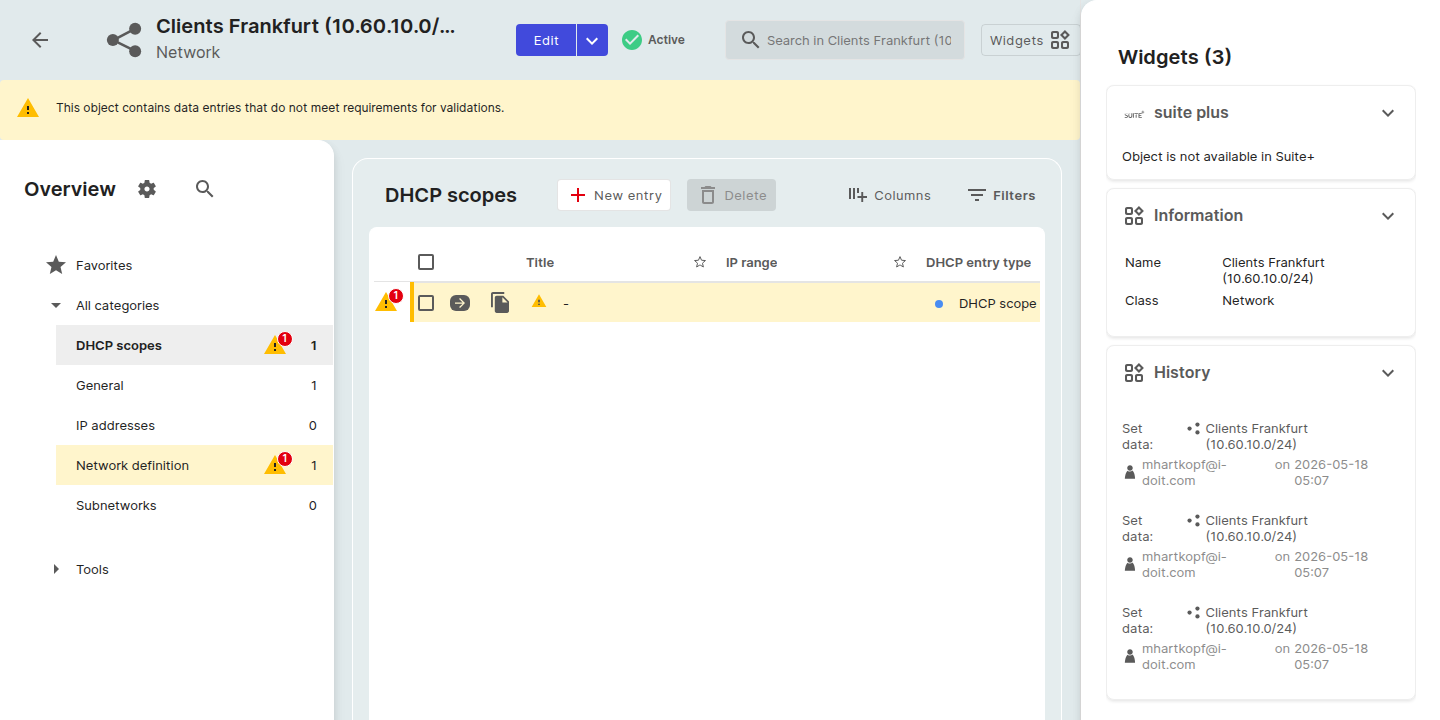
Every scope has these attributes:
| Attribute | Notes |
|---|---|
| Title | Free-text name of the scope (for example Clients or Phones). Two scopes with the same range type but different titles stay in separate groups in the IP table. |
| IP range | Start and end addresses of the scope (for example 10.0.0.1, 10.0.0.20). |
| DHCP entry type | The role of the range, e.g. Reserved, Excluded, or Dynamic. |
Add a DHCP scope#
- Open a Network object.
- Go to the DHCP scopes category (sidebar) or the DHCP scopes tab on the Network detail page.
- Click Add + above the table.
- Fill in Title, IP range, and DHCP entry type.
- Save.
The new scope appears in the table and the IP-addresses table groups any addresses inside the range under the scope title.
Edit or delete a scope#
- Edit: hover the row and click the pencil in the Actions cell.
- Delete: tick the row and click Delete above the table, then confirm.
Effect on IP usage#
The Usage details panel on the Network detail page splits IPv4 (and IPv6) addresses into:
- Total: the size of the network.
- In DHCP scopes: every address that falls inside any DHCP scope you created here.
- Not in DHCP scopes: the remainder.
Adding or removing scopes immediately updates the breakdown and the donut chart.