Model Context Protocol (MCP)#
The MCP add-on lets an AI client such as Claude read and work with your i-doit up CMDB over the Model Context Protocol, the open standard for connecting AI clients to external data. Once it is connected, the client can search objects, inspect categories and classes, and, when write access is enabled, create and update CMDB content on your behalf. The add-on runs as a separate service alongside i-doit up and is reached through your own i-doit up URL and an app token, so every call is authenticated as a real i-doit up user.
This page describes the in-product side of the add-on: where to find it, how to create the app token, how to connect an AI client, what the client may do, and how to read the access log.
What the MCP add-on does#
MCP is an open standard that lets AI clients talk to external tools and data sources in a uniform way. The i-doit up MCP add-on implements the server side of that standard for your CMDB, so an MCP-capable client can:
- Search and read objects, object categories, classes, dialog values, and reports.
- Create and update objects, category entries, classes, and dialog values, when write access is enabled for the tenant.
The client never holds a database connection. Every request goes through the i-doit up API with the app token you provide, so the client sees exactly the data and respects exactly the rights of the user that owns the token.
Where to find it#
Open the user menu (avatar at the top-right) and choose Settings. At the bottom of the left sidebar, below Administration, sits the MCP group with two entries:
- How to connect, the setup wizard.
- Logs, the access log.
The MCP group is contributed by the add-on and only appears once the add-on is installed for your instance. The Logs entry is shown only to users who hold the MCP Logs access right, see the access log below.
Create an app token#
The client authenticates with an i-doit up app token. A token belongs to one user and carries that user's rights, so create it on the account the AI client should act as.
- Go to Settings → Users and open the user you want the client to act as.
- Switch to the Apps tab and click Add app.
- Give the app a name (for example Claude MCP) and save.
- Copy the token from the dialog.
The token is shown only once. If you lose it, delete the app and create a new one to get a fresh token.
The token does not expire on its own. To revoke a connected client later, delete its app on the Apps tab and confirm Delete Application, the token then stops working within a few minutes. Because the token carries the user's rights, prefer a dedicated user with only the rights the client needs over an administrator account.
Connect your AI client#
The How to connect tab builds a ready-to-paste connection setup for you. You do not have to assemble the URL or headers by hand.
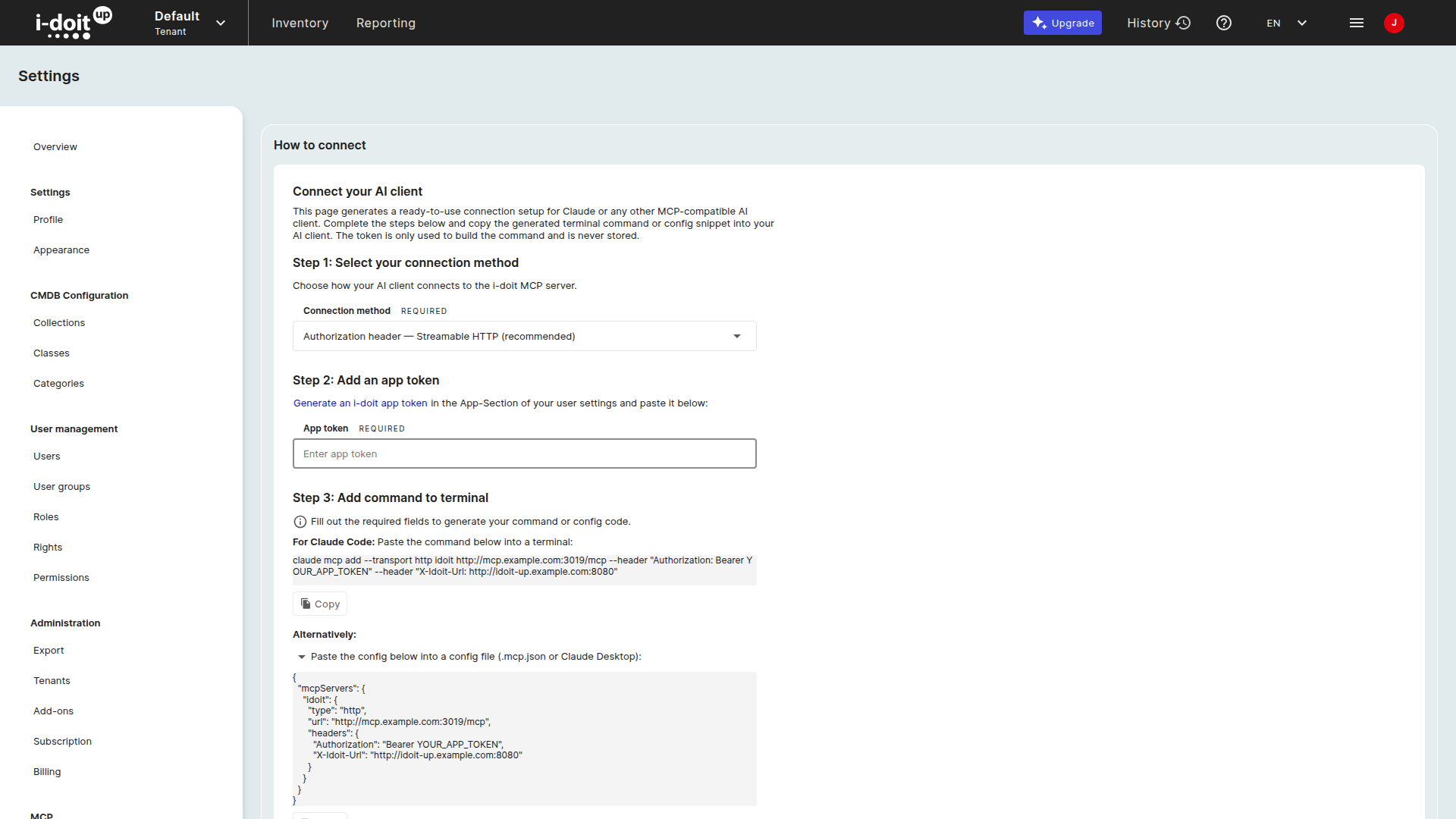
- In Step 1, leave the connection method on Authorization header, Streamable HTTP (recommended). Streamable HTTP is the current transport. The dropdown also offers a legacy SSE method, see Connection methods below.
- In Step 2, paste the app token you created. The token is only used to build the command and is never stored by the page.
- In Step 3, copy either the one-line terminal command for Claude Code or the equivalent configuration block for a
.mcp.jsonfile or Claude Desktop.
The generated command already contains your MCP server URL and your i-doit up URL. The i-doit up URL is sent in the X-Idoit-Url header and identifies your tenant, and the app token is sent as a Bearer token:
1 2 3 | |
1 2 3 4 5 6 7 8 9 10 11 12 | |
Connection methods#
Step 1 offers two methods. Whichever you pick, Step 3 rewrites the command and the config to match, so the snippet you copy is always correct.
| Method | Transport | Endpoint | Credentials |
|---|---|---|---|
| Authorization header, Streamable HTTP (recommended) | Streamable HTTP | /mcp | Authorization: Bearer <token> and X-Idoit-Url headers |
| Authorization header, SSE | SSE (legacy) | /mcp/sse | the same two headers |
The two methods differ only in the transport. Streamable HTTP is the current MCP transport. SSE is the older transport, kept for clients that do not yet speak Streamable HTTP. Both reach the same tools, and both send the app token and the tenant URL as request headers, never in the URL.
Paste the block into your client, restart it, and ask the client to run a read action such as listing classes. The call then appears in the access log within a few seconds.
What the AI client can do#
By default the client can read your CMDB and, when write access is enabled, change it.
- Read actions search and inspect objects, object categories, classes, dialog values, and reports.
- Write actions create, update, duplicate, and delete CMDB content such as objects, category entries, classes, and dialog values.
Write access is a per-tenant setting and is enabled by default in the current release. This setting is not yet exposed in the user interface, so to keep a client read-only, give its token a user whose rights do not permit changes. Every write is recorded in the access log before it runs, so you always have a trail of what the client changed. Because the client acts as the token's user, it can only reach data that user is allowed to see and can only change what that user is allowed to change, see Rights and permissions.
The access log#
The Logs tab records every tool call the connected clients make against your tenant.
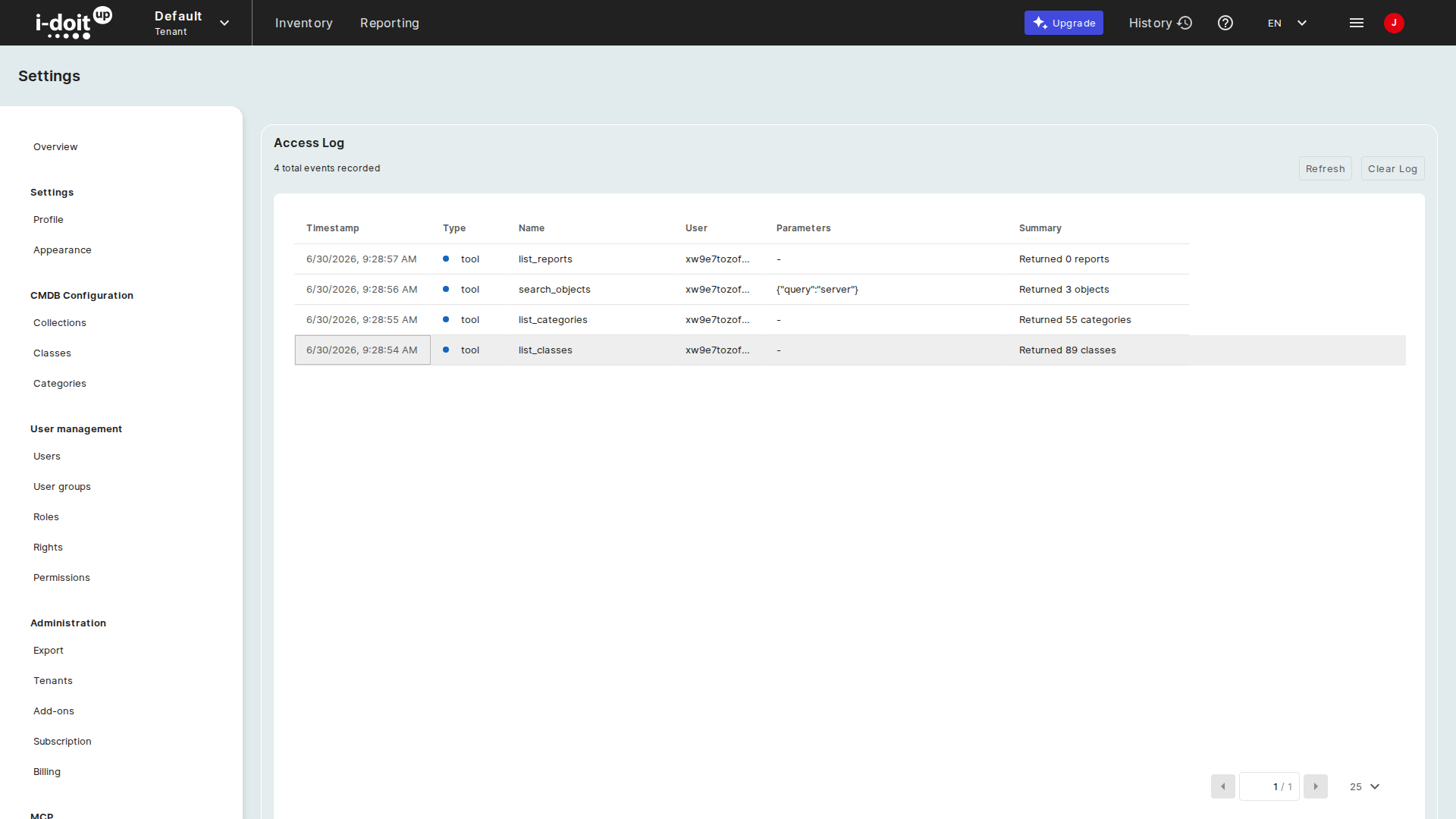
Each row shows:
| Column | Notes |
|---|---|
| Timestamp | When the call was made. |
| Type | The kind of call, for example tool for a tool call. |
| Name | The tool that ran, for example list_classes or search_objects. |
| User | The i-doit up user whose app token was used. The token itself is never shown. |
| Parameters | The arguments the client passed, for example {"query":"server"}. |
| Summary | A short result, for example Returned 89 classes. |
The log does not refresh on its own, so click Refresh to reload it. The log is scoped to the active tenant, so each i-doit up URL has its own log, see Tenants.
Clear Log removes all entries for the tenant.
The Logs tab is gated by an add-on right that is not granted automatically, not even to administrators, so the entry stays hidden until you grant it. To grant it, open Settings → Rights, choose Add-on rights → MCP, and click New right. Select the user, role, or group, check MCP Logs access (add Clear MCP Logs to also allow clearing the log), and save. See Rights and permissions.
Further readings#
- Add-ons, the MCP server is an add-on registered with your i-doit up instance.
- Rights and permissions, control who can open the access log and clear it.
- Tenants, each i-doit up URL is a separate MCP tenant with its own access log.
- User management, where the app token is created on a user account.
- Model Context Protocol, the open standard the add-on implements.